
Forms and Surveys
Google Forms
 Google
Embed a Google Form on any page
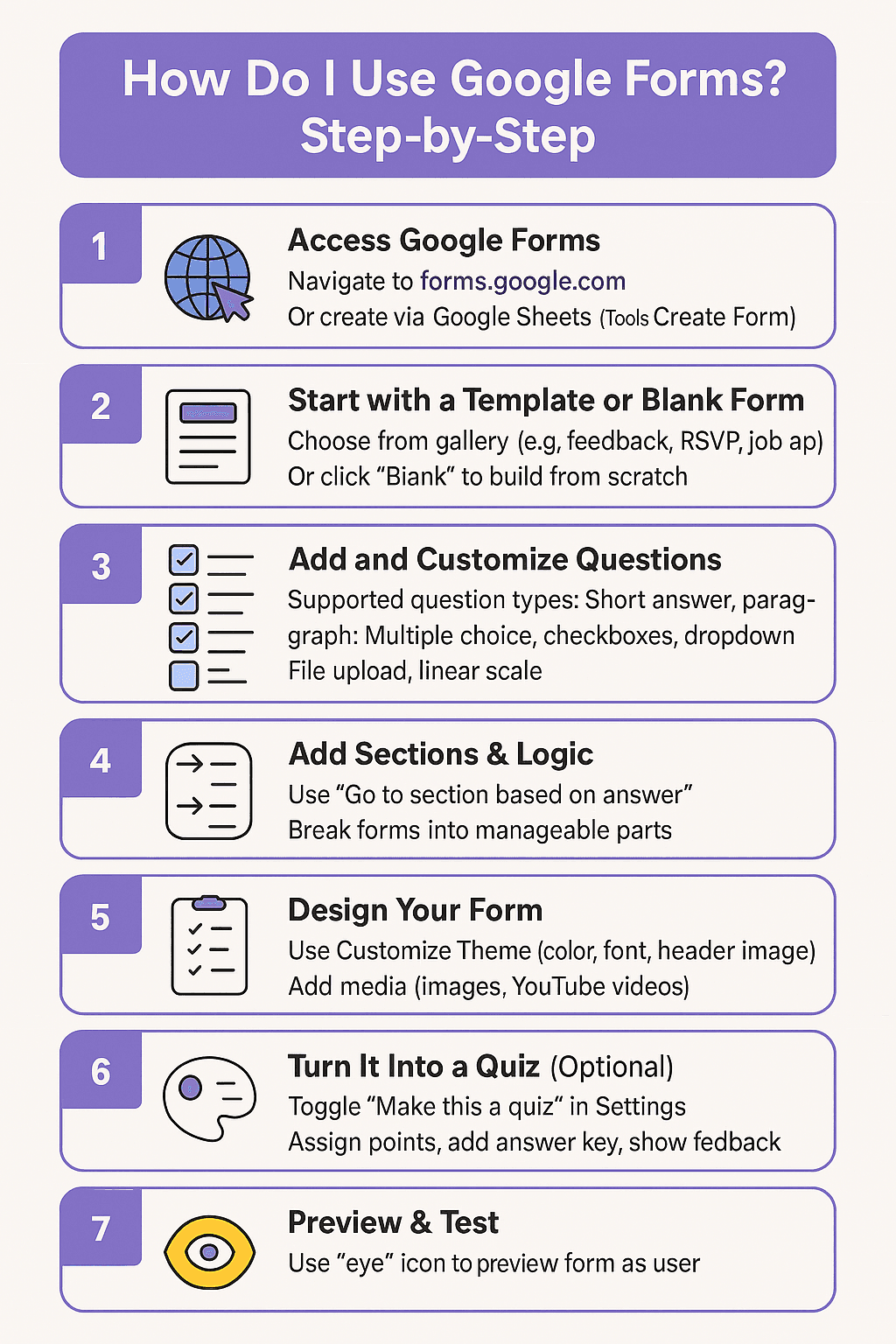
Google Forms is a free, web-based tool provided by Google that allows you to create online surveys, quizzes, and data collection forms. It is widely used by educators, businesses, and individuals to collect information effortlessly without needing any coding skills.
Key Features
Versatile Questions: Support for multiple-choice, short-answer, checkboxes, dropdowns, and file uploads.
Real-Time Data: Responses are automatically gathered and summarized with instant visual charts.
Smart Integrations: Directly links to Google Sheets so you can view raw data in an organized spreadsheet.
Quizzes: Built-in options to assign point values, create self-grading tests, and provide instant feedback.
Customization: Add logic branching (skip to specific sections based on an answer), insert images or YouTube videos, and adjust fonts or colors to match your brand.
How to Create a Google Form (Step-by-Step)
Access the Tool
Open your browser and navigate to forms.google.com. Alternatively, open your Google Drive, click New, and select Google Forms.Set Up the Basics
Click the Blank form (or select a template). Type out your form title and an optional brief description.Add and Customize Questions
Click the Plus (+) icon on the floating menu to add a new question. Use the dropdown menu next to the question field to change the format (e.g., changing from Multiple choice to Paragraph).Choose Where Data Goes
Go to the Responses tab at the top, click the green spreadsheet icon (or the three-dot menu), and select Create a new spreadsheet so all submissions flow into Google Sheets automatically.Adjust Settings
Click the Settings tab to toggle options like restricting responses to your organization, collecting email addresses, or turning the form into a graded quiz.Send and Share
Click the Send button at the top right. You can copy a shareable link, email it directly to respondents, or grab an embed code to place it on a website.