
Analytics
Meta Pixel
 Meta
Meta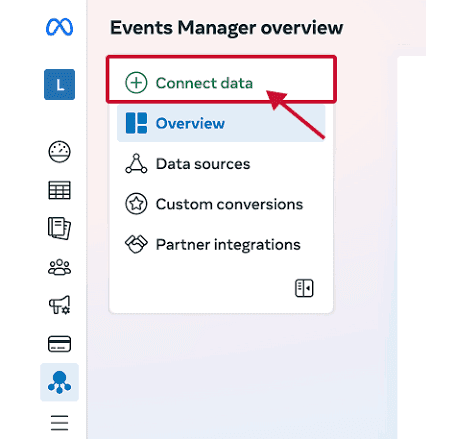

Track conversions from Meta ads
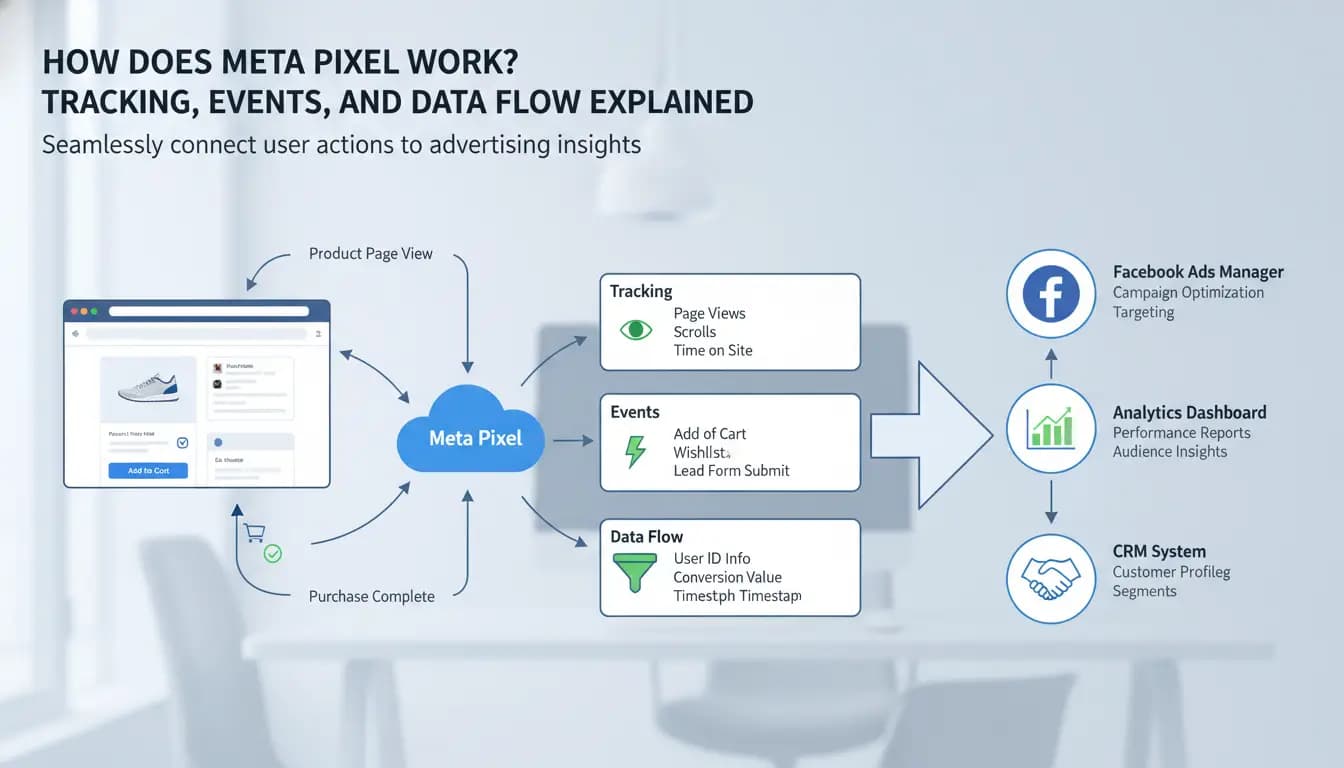
The Meta Pixel (formerly the Facebook Pixel) is a piece of JavaScript code that you embed into your website to track visitor behavior, measure the effectiveness of your Facebook and Instagram ads, and build targeted custom audiences. Think of it as your website's marketing brain that communicates directly with the Meta Ads Manager.
What the Meta Pixel Does
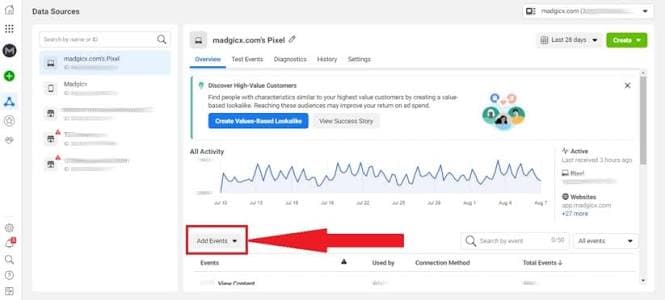
When installed, the pixel tracks specific actions (called "Events") that visitors take on your site. The most common standard events include:
Page View: Fires when someone lands on any page of your site.
View Content: Triggers when a visitor views a specific product page.
Add to Cart: Logs when someone intends to buy but hasn't checked out yet.
Initiate Checkout: Tracks when a user begins the billing and shipping process.
Purchase: The holy grail event that records completed sales or sign-ups.
Why Your Business Needs It
If you are spending even a few rupees running ads on Meta platforms without a pixel, you are flying blind. Here is what the tool unlocks for you:
Sequential Retargeting: You can serve specific ads to people who have already visited your site. For example, you can target an exclusive discount code only to users who added a product to their cart but left before purchasing.
Conversion Optimization: Instead of just optimizing for link clicks, you can tell Meta to show your ads to users who are statistically most likely to complete a Purchase or submit a Lead form.
Lookalike Audiences: Meta can analyze your highest-value site visitors (like your repeat buyers) and find millions of similar users across India and globally who share their online traits and behaviors.
Accurate ROAS Tracking: It clearly demonstrates your Return on Ad Spend by matching exact sales figures to the specific ad creative that drove the customer to your site.
How to Generate and Install It
Setting up the pixel requires an active Meta Business Account and admin access to your website:
Generate the Pixel: Go to your Meta Events Manager, click Connect Data, select Web, and follow the prompts to name and create your pixel dataset.
Choose Your Installation Method:
Manual Code (For Custom Sites): You copy the raw 30–40 lines of JavaScript base code provided by Meta and paste it into the global header section—right above the
</head>tag—of your website's template.
Verify It Works: Download the free Meta Ads Data Advisor (formerly Meta Pixel Helper) Chrome Extension. Visit your website, open the extension, and ensure it displays a green checkmark indicating your events are actively firing.