Domains
Connect custom domains, configure DNS records, and automate SSL certification for your site.
Blox allows you to run your website on an auto-generated temporary subdomain or connect a custom domain you already own. We handle security certificates and routing fallbacks automatically.
Overview
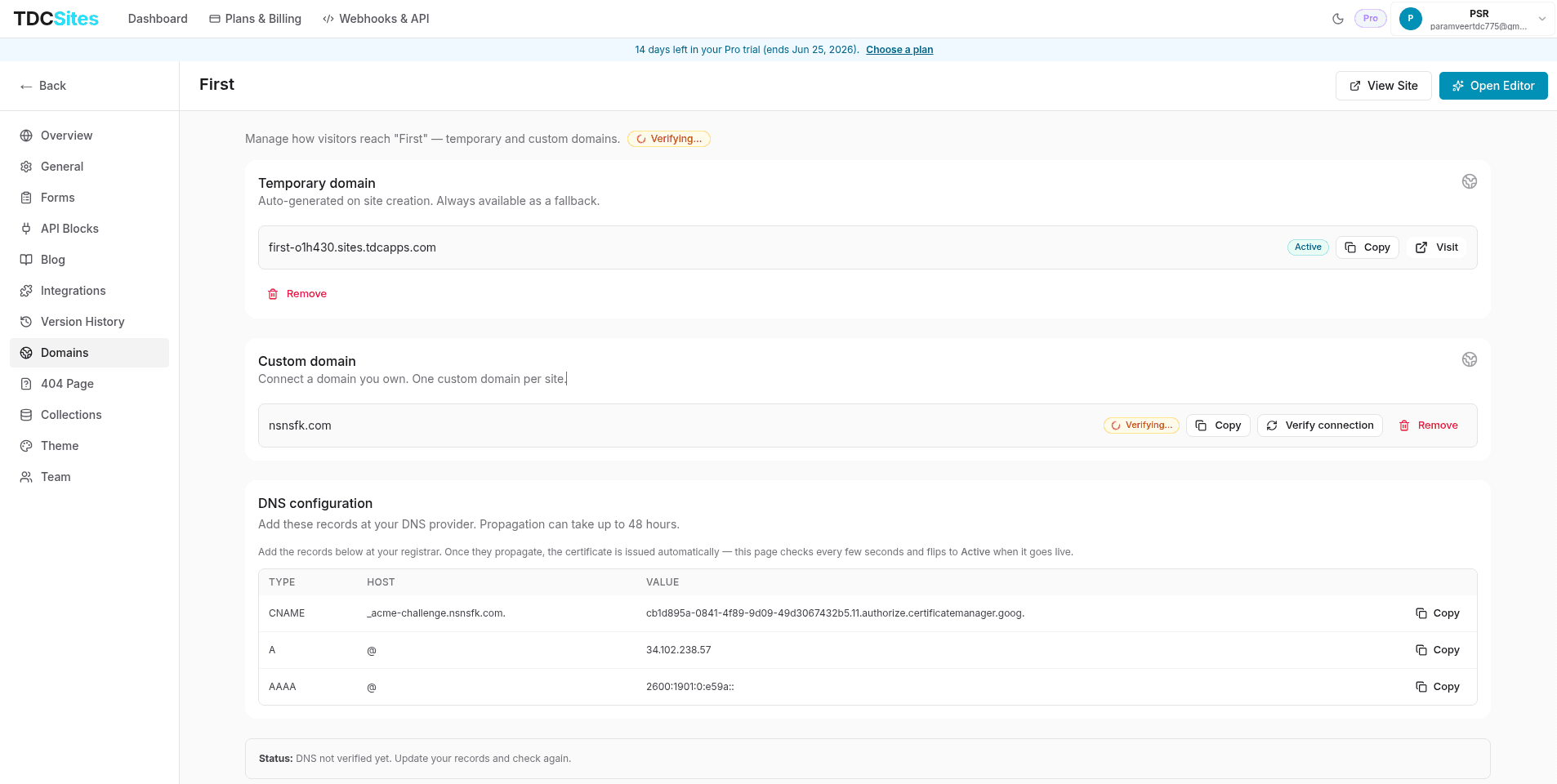
Each website has a dedicated Domains tab in the left sidebar of its Site Management page. This panel lets you manage subdomains and custom domains, track verification stages, view DNS records, and toggle security configurations.
Temporary Subdomain
When you first create a site, Blox automatically provisions a temporary subdomain:
- Format:
yoursubdomain.tdc.site. - Wildcard SSL: Inherits our secure wildcard SSL certificate automatically, meaning it is live and secure (HTTPS) immediately upon creation.
- Fallback Capability: If you later attach a custom domain, the temporary subdomain remains active as a backup routing address. You can copy the URL or click Visit to view the live site at any time.
Connecting a Custom Domain
Connecting a custom domain (e.g. www.mybrand.com or blog.mybrand.com) requires a plan that includes the Custom Domains feature. If locked, you can upgrade your workspace plan from your Profile settings.
To add your custom domain:
Navigate to the Domains panel of your site dashboard.
Click Add Domain and enter your domain name.
[!IMPORTANT] Do not include protocol prefixes (
https://orhttp://) or trailing slashes (e.g., writewww.example.cominstead ofhttps://www.example.com/).
Keep Redirect apex to www checked (recommended) so example.com permanently redirects to www.example.com. Uncheck it to attach only the hostname you typed.
Click Add. Routing DNS records appear immediately. SSL challenge records are added as soon as Google issues the authorization CNAME. The hostname stays Pending until those records are published and the certificate is issued.
DNS Configuration & Setup
Once a custom domain is added, a DNS Configuration card appears displaying the DNS record(s) you need to create in your DNS provider's settings (e.g., GoDaddy, Namecheap, Cloudflare, Route 53):
| Record Type | Host / Name | Target / Value |
|---|---|---|
| CNAME | www (or your subdomain prefix) | cname.sites.tdcapps.com |
| A / AAAA | @ (for the apex) | The IPv4 / IPv6 values shown in the dashboard |
| CNAME | _acme-challenge (and _acme-challenge.www when both hosts are connected) | The Google Certificate Manager value shown in the dashboard |
- Use the Copy button next to each record value to copy the details to your clipboard.
- Navigate to your registrar's DNS management console and insert these records.
- On Cloudflare, records must be DNS only (grey cloud). Orange-cloud proxying prevents certificates from issuing.
Verification & SSL Provisioning
Blox automates the lookup check and security setup process:
- Automatic Polling: Once the domain is added, the dashboard automatically polls the verification server every 8 seconds to check if your DNS records have propagated. The status badge displays
Verifying...during this time. - Manual Verification: Click Verify connection to manually run a DNS lookup check.
- SSL Issuance: As soon as the DNS records are verified, a secure SSL certificate is issued and renewed automatically by the system.
- Active Status: Once completed, the badge flips to Active and your custom domain becomes the primary address. All traffic to your site is securely routed here.
Troubleshooting Provisioning Errors
If DNS propagation fails or records are misconfigured, the status updates to Error and displays the error message returned from the server.
- Check your registrar's settings to ensure the host and target values match the dashboard table.
- Allow time for DNS propagation (can take from a few minutes up to 48 hours).
- Click Retry on the error alert in the dashboard to trigger a new provisioning cycle.
Deleting a Domain
If you want to disconnect a domain or point your site elsewhere:
- Click the Remove trash button next to the domain name.
- Confirm the action in the warning dialog box.
- Disconnecting a custom domain is non-destructive to your site content: the site immediately reverts to being served securely from your temporary
*.tdc.sitesubdomain.