
App Marketplace
Browse app categories, view app details, and install apps to a site or your entire workspace.
The App Marketplace is where you discover and install third-party integrations — analytics, marketing, forms, scheduling, support, and more. This page covers browsing and installing; once an app is installed, configuring it happens on the site's own Apps tab — see Apps (site management).
The Marketplace's app catalog is browsable without signing in. You only need an account to Favorite or Install an app — either action redirects you to log in first if you aren't already.
Browsing & Filtering
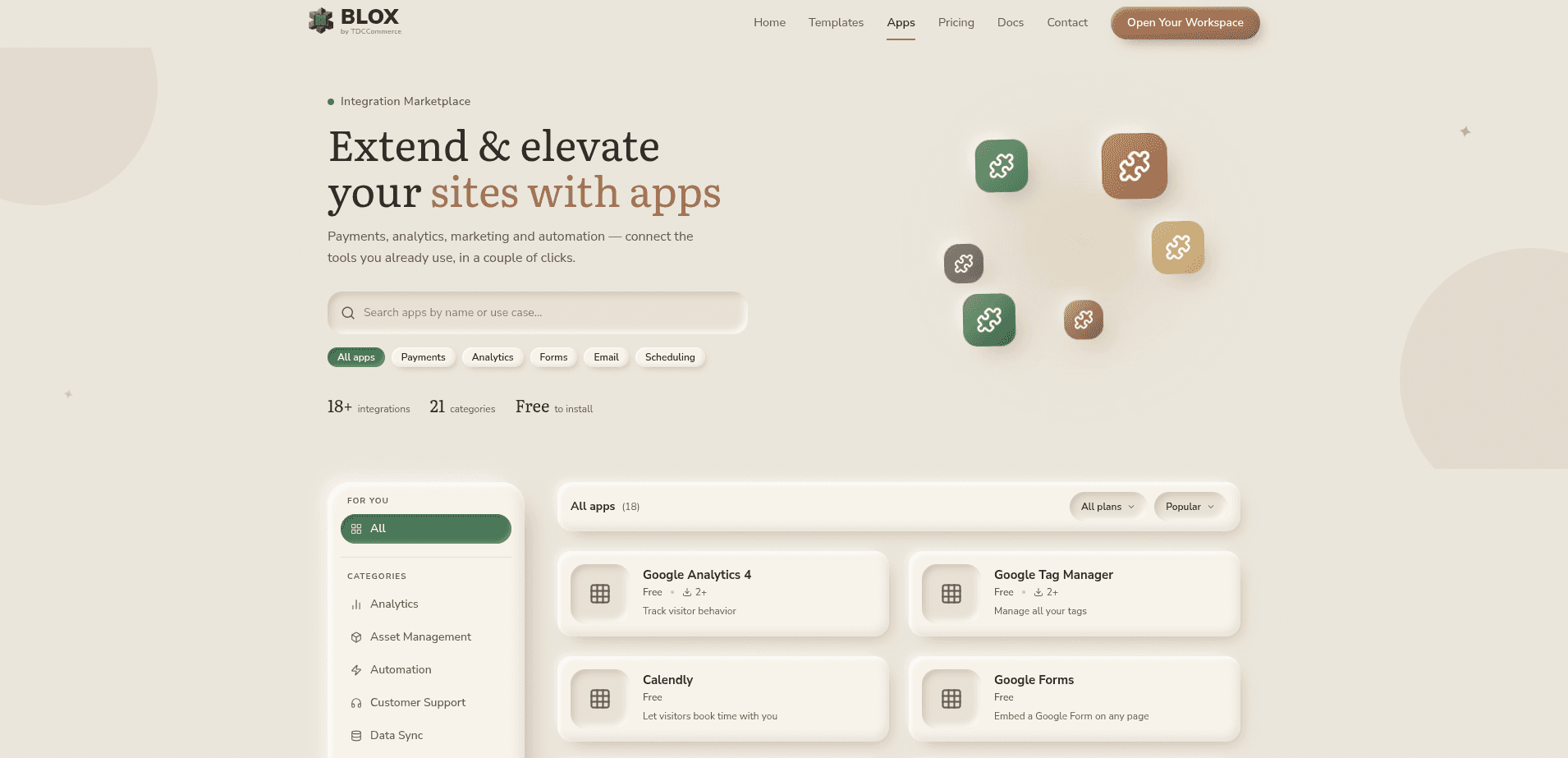
Go to Marketplace → Apps to open the catalog. You can:
- Search by name or use case.
- Click a Popular chip (e.g. Payments, Analytics, Forms, Email, Scheduling) to run a suggested search — these aren't categories, just shortcuts into the search box.
- Browse New & Noteworthy, a hand-picked selection shown above the full grid (hidden while you're actively searching or filtering).
- Filter by pricing — All plans, Free & Freemium, or Paid only.
- Sort by Popular (install count), Newest, or A–Z.
Apps are organized into categories: Analytics, Asset Management, Automation, Customer Support, Data Sync, Design, Ecommerce, Forms & Surveys, Marketing and Scheduling.
App Details
Click any app to open its detail page:
- A screenshot/video carousel showing the app in action.
- A Favorite (heart) button to save it for later.
- Description and Permissions tabs — Permissions lists exactly what the app can read or change, grouped by scope.
Installing an App
Open an app's detail page and click Install App.
In the dialog, check the site(s) you want it on, and/or check a workspace's own checkbox to install it across that entire workspace at once. Checking a workspace disables its individual site checkboxes, since the workspace-wide install already covers them.
Review the permissions summary, then click Authorize & Install.
You can also start here from inside a site: click Browse Apps on that site's Apps tab, which opens the Marketplace with that site pre-selected.
Installing requires the right role: Workspace Admin to install across an entire workspace, Site Manager to install to an individual site. Site Designer and Site Viewer can't install apps.
Once installed, the app appears as a card on every target site's Apps tab, ready to configure — see Apps (site management) for setup fields, workspace-wide vs. site-specific precedence, and removing an app.
Connecting Third-Party Accounts
Some apps need you to connect an account before they work, from that same Apps tab card. Most (like Slack) use a one-click Connect that hands off to that service's own login. A few, like Zendesk, work differently: you first paste in credentials from your own account with that service, and Connect only becomes available once those are saved.
Using an App on a Page
A few apps place a block you can add to a page from the editor's Blocks library, under an Apps category — see Blocks. Most add a generic block where you paste your own embed snippet; a handful (Calendly, Google Reviews, LottieFiles, Stripe Checkout) get a dedicated, fully-configurable block instead. These blocks are always visible in the library, but need the app installed (and configured, for anything account-based) before they'll render real content on the page.
The first-party Stripe app connects your own Stripe account so you can take payments on your site — it's unrelated to paying for anything in the Marketplace itself. Installing any app in TDC Site Builder is free; a listed price only describes what the third-party service itself may charge.
Plan Access
Installing any app at all requires your plan to include the App Marketplace feature. Two categories of app carry an additional plan requirement on top of that: analytics/tracking apps need Basic Analytics, and apps that inject custom code need Custom Scripts. See Feature Access for exactly what each plan includes.
Related
- Marketplace Overview — How Apps compares to Templates.
- Apps (site management) — Configuring, removing, and troubleshooting an installed app.
- Blocks — Every block type, including the ones apps contribute.
- Feature Access — Plan requirements for the App Marketplace, Basic Analytics, and Custom Scripts.