Version History
Browse, preview, and restore previous published versions of your pages, header, and footer.
Version History protects your content from accidental losses. Every time you publish, Blox automatically saves a historical snapshot of the page and — when they changed — of the global header and footer. You can trace changes, preview older builds, and roll back securely.
Accessing Version History
To browse the version timeline for your site:
Navigate to your Site Dashboard and select the Version History tab in the left sidebar.
By default, the timeline displays the history of your Home page. Use the selector in the top-right corner to switch to another page, or choose Header & Footer under Global to browse layout snapshots.
Understanding the Version Timeline
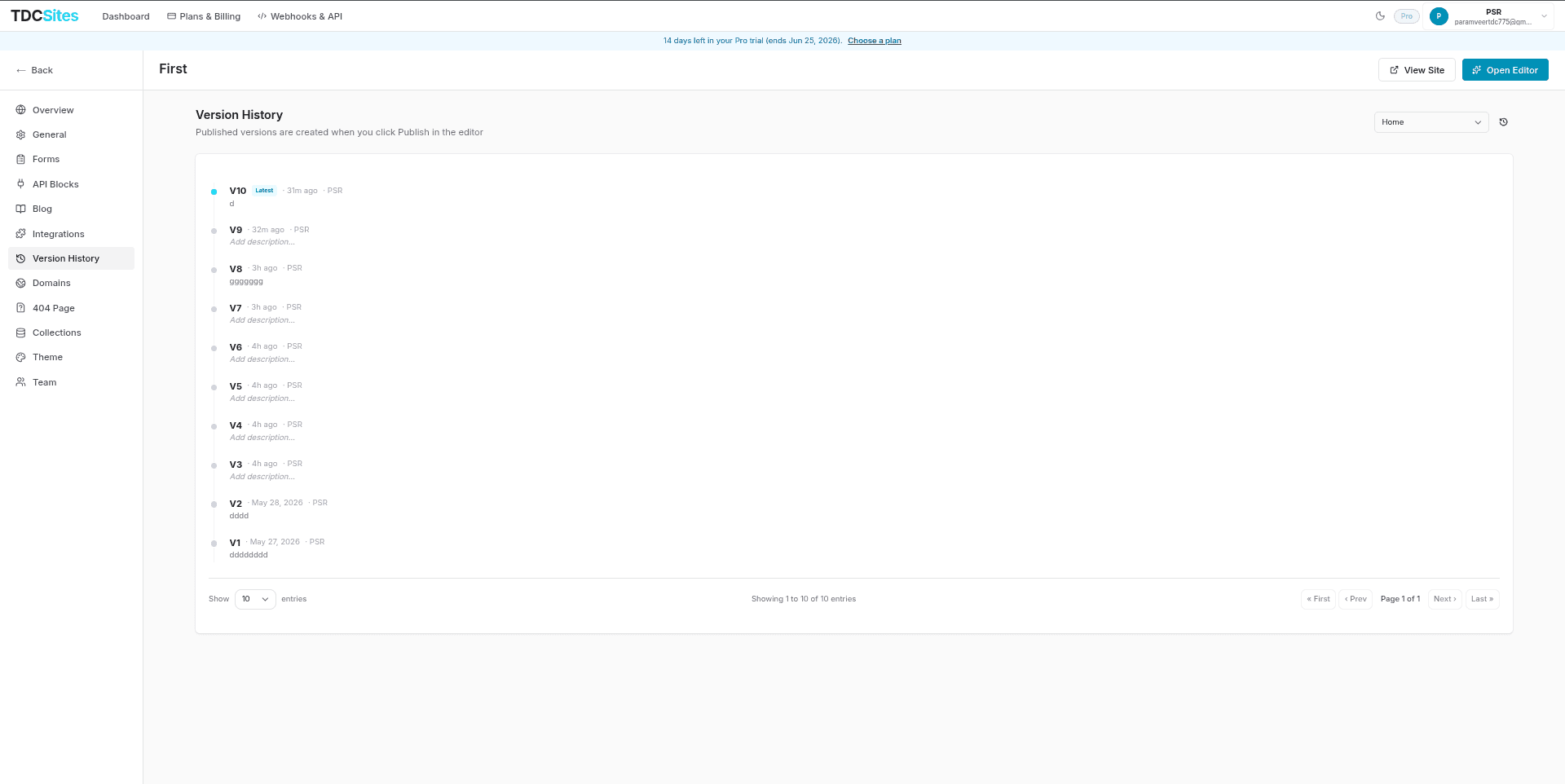
The timeline lists versions in descending chronological order. Each timeline entry includes:
- Version Number: An incremental tag (e.g.,
v1,v2) representing the publication sequence. - Latest Badge: Highlights the version that is currently live on your production URL.
- Relative Date: Displays how long ago the version was published (e.g.,
10m ago,2 hours ago,Yesterday, or a calendar date). - Publisher Byline: Identifies the name of the workspace member who built and published that version.
- Inline Descriptions: Click the Add description... link under any version to add a custom note (e.g., "Pre-relaunch backup" or "Updated contact page header"). Press
Enterto save, orEscapeto cancel.
Actions on Historical Versions
When you hover over any entry in the version list, two action buttons appear on the right:
1. Preview
- For a page, Preview opens a read-only canvas in a new browser tab (
/editor/[siteId]/preview/[versionId]). - For Header & Footer, Preview opens the historical header and footer wrapped around your latest published Home page (
/editor/[siteId]/layout-preview/[versionId]). - This lets you visually inspect the snapshot without affecting the live site.
2. Restore
- Clicking Restore opens a confirmation modal before rolling back the active draft.
- Non-Destructive Backups: When you restore an older version, the system automatically saves your current working canvas as a new version entry. You can always undo a restoration by restoring the backup version.
- Restoring a page updates that page's editor draft. Restoring Header & Footer updates the global header and footer draft on every page.
- Restore does not change the live site. Click Publish in the editor to make the restored snapshot public.
- Once confirmed, the editor canvas updates instantly, and a toast notification confirms the successful restoration.
Header & Footer versions
Header and footer are global layout sections shared across the site. They version independently of individual pages:
- A new Header & Footer snapshot is created automatically when you publish a page and the header or footer has changed since the last layout publish.
- Restoring a header/footer version does not change any page's content — only the global layout draft.
- After restore, publish any page (or the site) to deploy the restored header and footer to visitors.