
Saving & Publishing
Understand the difference between drafts and published versions, how to manage version history, and real-time collaboration.
The editor separates auto-saving drafts from publishing live changes, and lets you choose exactly what goes live — a single page, your shared header/footer layout, or the whole site.
Drafts vs. Published Versions
| Action | How it Works | Status |
|---|---|---|
| Auto-Save | Draft edits save automatically a couple of seconds after you stop making changes — edits made in quick succession reset the timer, so nothing saves mid-keystroke. | Private Draft (not visible to visitors) |
| Publish | Creates a version snapshot for the scope you choose and deploys it live immediately. | Live Production (publicly visible) |
Auto-save only updates your working draft. You must click Publish — and choose the right scope — to make changes visible to public visitors.
Publishing Your Changes
- Complete your edits on the canvas.
- Verify that the auto-save indicator in the top toolbar shows Saved.
- Click the Publish button in the top toolbar.
- Choose a publish scope:
| Scope | What it publishes |
|---|---|
| Page (default) | Only the current page. The Header and Footer are left untouched. |
| Layout | Only the shared Header and Footer — goes live across every page immediately. |
| Site | Every page and the Layout together, in one action. |
- Optionally add a Version Description (e.g., "Updated pricing tier details") to help identify this version later — it isn't required.
- Click Publish to confirm.
Publishing is instant — there's no queue. The moment you confirm, the version is saved and the live site is refreshed to match.
If the Publish button is greyed out with "Publishing isn't allowed for you on this site," a Site Admin hasn't allowed you to publish on this site yet, so your changes are reviewed first. Keep editing as usual and ask a Site Admin to publish. See Team & Roles.
If you only edited page content, Page scope is all you need. If you also edited the Header or Footer, choose Layout or Site — publishing a page on its own no longer carries header/footer changes along with it.
The Shared Layout (Header & Footer)
The Header and Footer are stored once per site, not once per page — editing either from any page updates it everywhere. But because Layout and Page are independent publish scopes, editing the header while you're on a specific page doesn't publish it until you explicitly choose Layout or Site scope in the Publish dialog.
Managing Version History
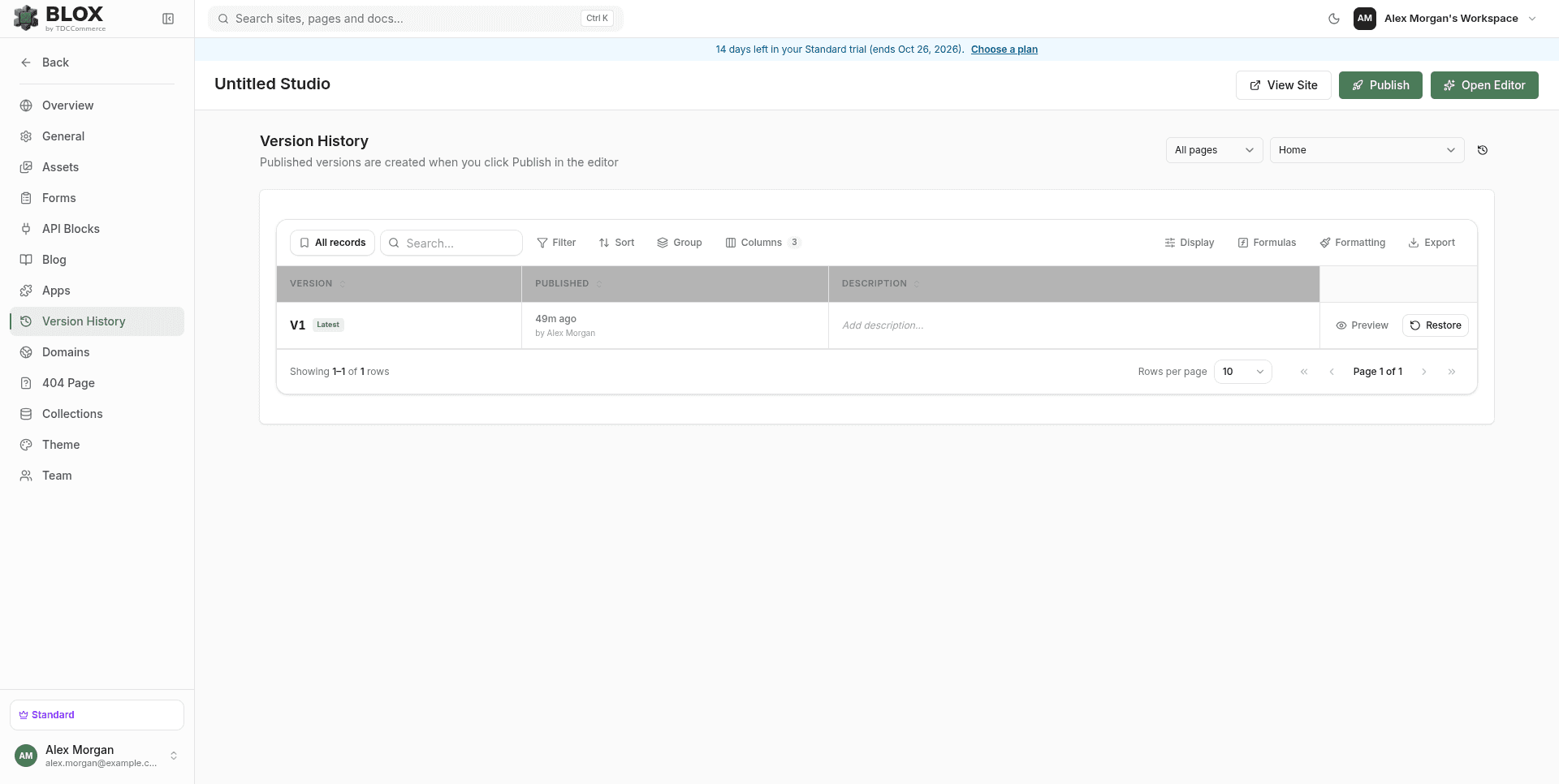
You can view, search, and roll back to past published snapshots from your Site Dashboard.
Accessing Version History
- Navigate to your Site Dashboard (outside of the design editor).
- Click the Version History tab on the site details page.
Version History Features
The Version History panel offers several tools to manage your deployments:
- Filter by Page or Header & Footer: Use the selector dropdown to filter version logs for a chosen page (e.g., the homepage
/or/about), or choose Header & Footer to browse global layout snapshots. - Inline Descriptions: Click the version description area to add, edit, or update description notes inline. This allows you to tag historical versions after publishing.
- Preview Version: Click the Preview button next to any historical snapshot to open a read-only preview in a new browser tab. Page previews show that page version paired with the current published header/footer. Header & Footer previews show that layout snapshot paired with the latest published Home page.
- Restore/Rollback Version: Click Restore to roll back a page or the global header and footer to that version.
- Important: To prevent accidental loss of work, the platform automatically saves your current editing draft as a backup version before executing the restore.
- Restore updates the editor draft only. Click Publish to make the restored snapshot live.
- Pagination Controls: Adjust the page entries (5, 10, 20, 50, or 100 entries per page) and navigate through version history pages.
Preview Mode (Editor Preview)
Before publishing, you can test your work using the Preview toggle in the top toolbar:
- UI controls hidden: Hides the Left and Right sidebars to give you a clean, uncluttered representation of the page layout.
- Simulated interactivity: Hover states, accordions, and scroll/entrance animations behave as they will on the live site.
- Links don't navigate: Clicking a link is intentionally disabled in Preview Mode, so you can inspect the page without accidentally navigating away.
Click Exit Preview in the top toolbar to return to the layout designer.
Real-Time Collaboration
If your plan supports collaboration, team members can edit the same site together in real time.
- Collaborator Indicators: Active teammates appear as avatars in the top toolbar, and their current selection is outlined on the canvas with a colored border and name tag.
- Syncing: Shortly after you stop editing, your changes sync out to every other collaborator's editor.
- Conflict Handling: Sync works at the whole-page level rather than merging field-by-field. If you have unsaved edits in progress when someone else's changes arrive, your local edits take priority until they save, so you won't lose in-progress work. But if two people edit different parts of the same page at nearly the same time, whichever change syncs last can overwrite the other rather than merging automatically — so for anything sensitive, it's worth confirming with your team who's editing what.
Related
- Editor Overview — Editor layout, toolbars, and side panels.
- Sections — How Header/Footer sections fit into the shared Layout.
- Blocks — Every block type available in the editor.